"Using Yahoo Mail Services - Send, Receive, Forward and Reply Mail Messages"
For a newbie, using Yahoo mail services may sound difficult. That is why I create this tutorial to help you mastering the skills.
The following tutorials assuming that you are using the Yahoo! Mail classic version. To utilize the services you need to login to the Yahoo! Account.
To check e-mail
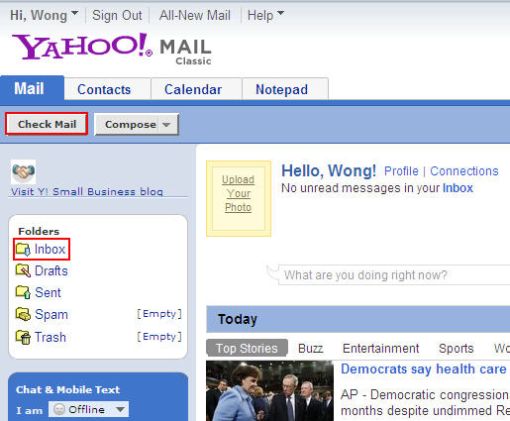
Login to your Yahoo mail using the ID and password created.
Click Check Mail button or Inbox icon.
" You will see all the messages listed there. Click the message subject to open the message and read it.
To send e-mail with attachment
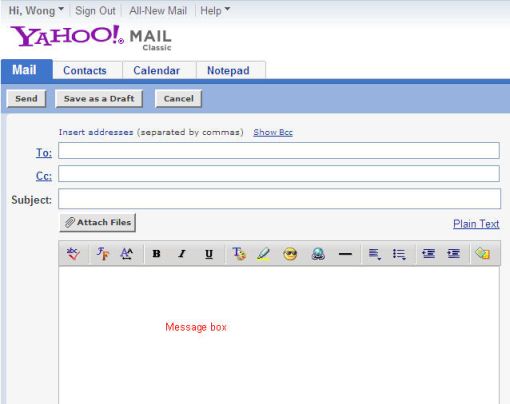
Click on the Compose button (next to the Check Mail button)
In the To: column, type in recipient's e-mail address (separated by comma if more than one).
In the Cc: column, type in recipient's e-mail address (can leave it blank).
In the Subject: column, type in anything that related to your purpose sending the mail
In the Message box, type in any message that you would like the recipient(s) to receive.
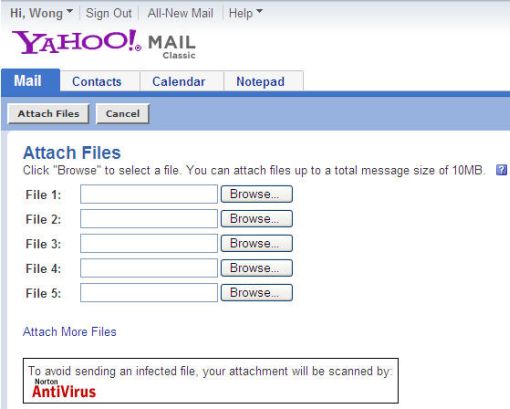
To attach any files (text, audio, video, etc) to the message, click Attach Files button.
In the File 1: column, click Browse button.
Look for the file that you wish to attach, select the file and click the Open button (You can attach more that one file at a time but the total file size must be less than 10MB).
When finish, click Attach Files button (it take some time to attach files depending on the attached file size).
When everything finish, click Send button.
To receive and open attachment e-mail
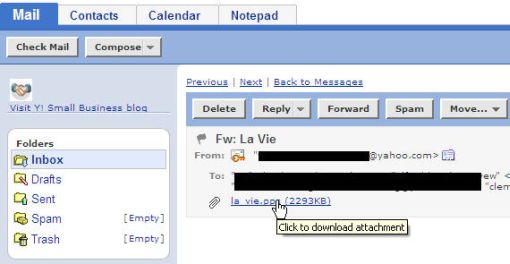
Click on the message link under the Subject area to open the message with attachment.
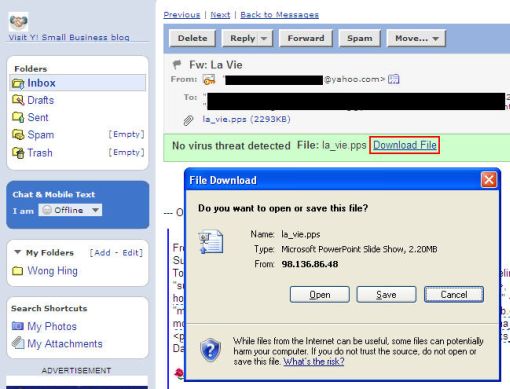
Click on the attached file name as shown here:
Click the Download File link to bring out the File Download dialog box.
Click Save icon.
From the Save As dialog box, in the Save in: combo box - choose a place to save the file.
Click the Save button to save the file. It will take some time.
To reply an e-mail message
After read the received mail, click the Reply button.
Type in the message in the message box area.
Click Send button.
To forward an e-mail message
Click on the link below the Subject area (the mail that you wish to forward).
Click Forward button
In the To: column, type in recipient's e-mail address (separated by comma if more than one)
Click Send button.
To add e-mail addresses to the Address book
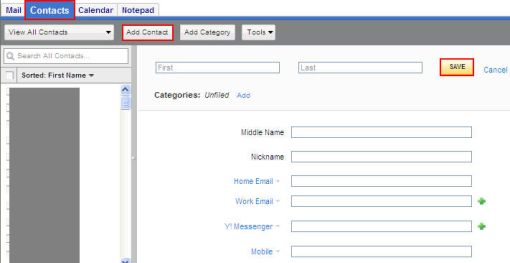
Click Contacts tab.
Click Add Contact button.
Key in Middle Name, Nickname, and Home Email and other that you think necessary columns.
Click Save button.
To log out Yahoo! mail
Click Sign Out link (located at the top of the screen).
Can't find what you're looking for? Try Google Search!
Microsoft Windows 7, Vista, XP, Microsoft Office Word, Excel, PowerPoint,
and Outlook are either registered trademarks or trademarks of
Microsoft Corporation in the United States and/or other countries.