The Windows 7 theme allows you to easily change the look of the Windows 7 user interface elements.
Each theme in the previous versions of Windows included only one desktop background option. In Windows 7, a theme can include multiple desktop backgrounds that are displayed sequentially, like a slide show.
Each theme can include the following four elements:
A desktop background image or color
A color that control window frames, Start menu, and the taskbar
Sounds that are associated with specific actions
A screen saver that starts after a period of inactivity
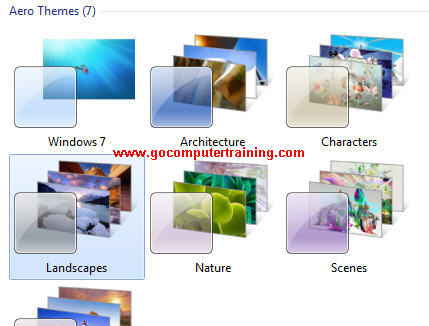
Windows 7 also comes with a set of Aero themes that includes:
Windows 7 (the default)
Themes that include graphic backgrounds, such as Architecture, Characters, Landscapes, Nature, and Scenes.
Themes relevant to different countries.
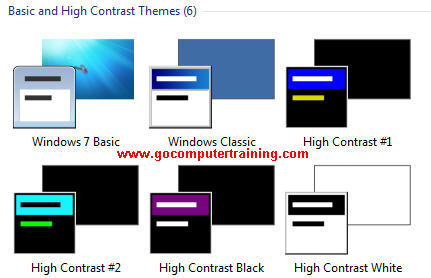
In addition, Windows 7 includes two basic themes designed for computer systems that don't support Aero graphics, and four high-contrast themes designed for people who need additional help viewing information on the screen.
To apply or change a Windows 7 theme
Open Control Panel in Category view.
In Control Panel, under Appearance and Personalization, click Change the theme.
From the Personalization window right-hand pane, under Aero Themes, click on any one of the standard themes in turn, pausing to notice the effect at the background.
You also can select theme under Basic and High Contrast Themes.
Modifying a Theme
You can customize a theme by changing any of its four elements: the desktop background, the window color, the sound scheme and the screen saver.
To modify a theme - desktop background
Open Control Panel in Category view.
In Control Panel, under Appearance and Personalization, click Change the theme.
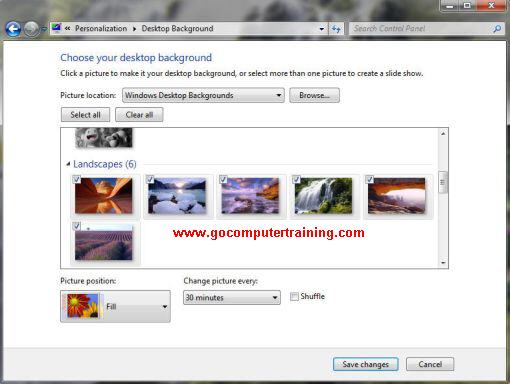
From the Personalization window right-hand pane, click on Desktop Background at the bottom of the screen.
Select the suitable options that best fit your desktop background view and click the Save changes button.
To modify a theme - Window Color
Open Control Panel in Category view.
In Control Panel, under Appearance and Personalization, click Change the theme.
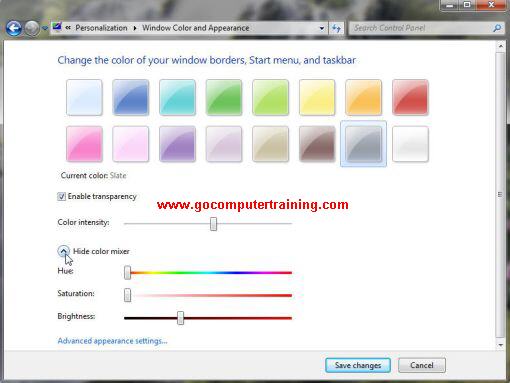
From the Personalization window right-hand pane, click on Window Color at the bottom of the screen.
Select the color that you like and as it will control the appearance of window frames, the Start menu, and the taskbar.
You can click the Show color mixer down arrow or Advanced appearance settings link for additional settings. When finish, click the Save changes button.
To modify a theme - Sounds
Open Control Panel in Category view.
In Control Panel, under Appearance and Personalization, click Change the theme.
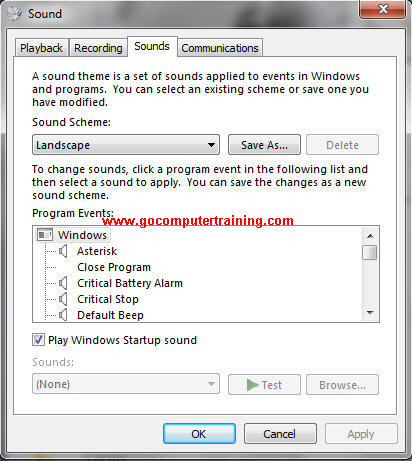
From the Personalization window right-hand pane, click on Sounds at the bottom of the screen.
You can select a different scheme by clicking on the Sound Scheme list. You can turn off sounds altogether by clicking No Sounds in this list.
You can modify any scheme by clicking an event in the Program Events list and then clicking a sound in the Sounds list.
Once finish, click OK to close the Sound dialog box.
Microsoft Windows 7, Vista, XP, Microsoft Office Word, Excel, PowerPoint,
and Outlook are either registered trademarks or trademarks of
Microsoft Corporation in the United States and/or other countries.