|
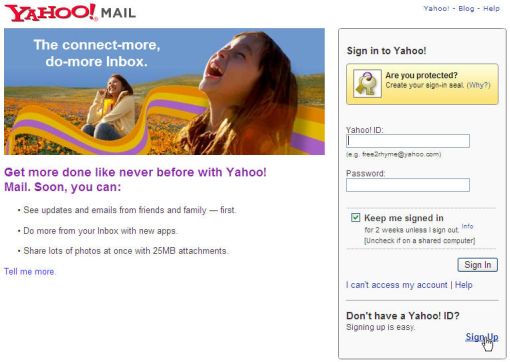
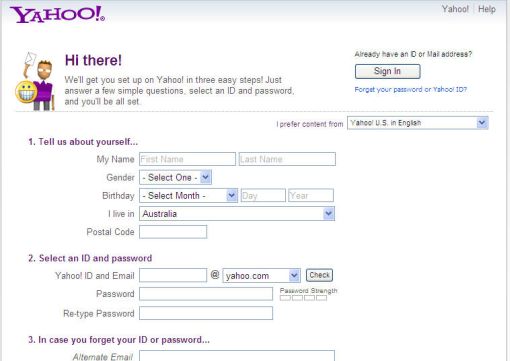
"Free Yahoo Email Account Sign Up"
|
||||
|
|
Related Computer Training Links:
- What Are the Major Hardware Components of A Computer?
- Discover the Secrets Behind the Windows Vista Program
- Free Step-by-step Microsoft Office 2003 and 2007 Courses
- The Complete Guide to Setting up Network at Home or Office
- Your Ultimate Computer Data Backup and Recovery Training Course
- All You Needs to Know About Computer Viruses, Spywares, Malwares, Trojans, Worms, etc...
Back to Top
You're viewing the Yahoo email account info page, click here to go back to the Home Page
Google Search:

Free Newsletter
Get your free subscription below to download two ebooks and improves your computer skills or click here for details.
Then why not use the button below, to add us to your favorite bookmarking service?
| FREE E-books | Office 2007 | Office 2003 | Internet & E-mailing | Sitemap |
Microsoft Windows 7, Vista, XP, Microsoft Office Word, Excel, PowerPoint,
and Outlook are either registered trademarks or trademarks of
Microsoft Corporation in the United States and/or other countries.